
Draw with AR: Trace and Sketch
Veewa LabsArt & Design
4.693.00 Reviews
- Version
- 1.3.0
- Installs
- 1.00M
- Age Rating
- Everyone
Screenshots
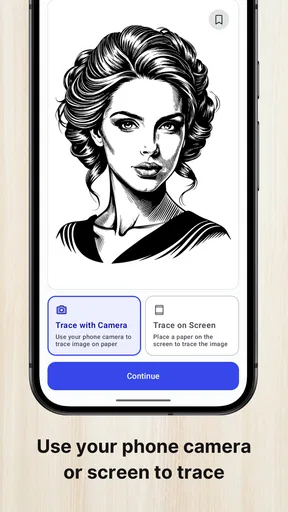
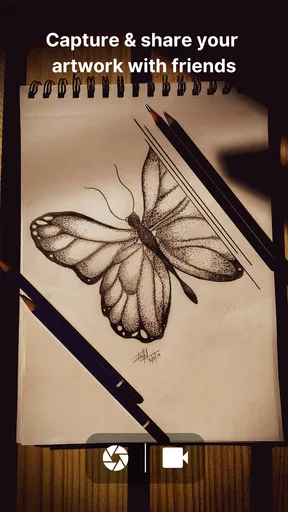
Our Review of Draw with AR: Trace and Sketch
 Analysis by Appyee
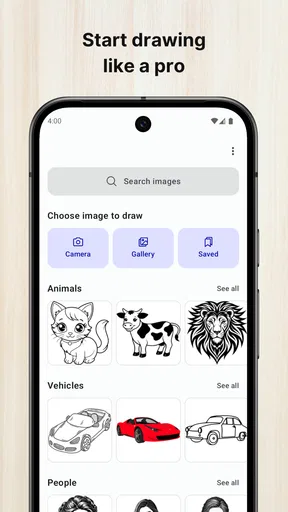
I found Draw with AR: Trace and Sketch most useful when I wanted to turn a blank page into a guided drawing session rather than start entirely from imagination. It belongs to the art and design category, and its central idea is simple: use augmented reality to help place a reference over your drawing surface so you can follow shapes, proportions, and outlines with more confidence. That makes it approachable for beginners, but it also gives experienced sketchers a quick way to block out a composition.
My first impression was that this is not trying to replace a full digital illustration studio. It is better understood as a bridge between a reference image and a physical sketchbook. I can see why the app has reached over a million installs and maintains a 4.6 average from around fourteen thousand ratings. The appeal is immediate: instead of repeatedly checking a picture on another screen, I can keep my attention on the paper and use the AR view as a visual guide.
How the AR drawing workflow feels in everyday use
The most natural way to use the app is at a desk with a phone positioned above or beside the page. I choose a subject, arrange the projected reference, and begin with the largest shapes before worrying about details. That order matters. If I start by tracing tiny features, I can produce a neat eye or decorative line while the overall head, object, or figure sits in the wrong place. The app is much more helpful when I treat it as a proportion tool first and a tracing aid second.
A realistic example would be preparing a handmade birthday card. I can place the card on a flat surface, use a simple reference for lettering or a small illustration, and lightly sketch the main contours. After moving the phone into a comfortable position, I can work through the outline without constantly picking up another image for comparison. The result still depends on my hand, paper, pencil pressure, and patience, but the visual guide reduces the intimidating first step.
I also found the approach useful for practicing objects that are difficult to judge from memory. A mug, leaf, shoe, or simple character can be broken into broad forms before I add shading or texture. This is where the app feels more valuable than a normal image viewer. A gallery image shows me what to copy, while an AR overlay helps me judge where the line should land on the page.
There is a trade-off, though. The phone has to remain in a stable position for the overlay to stay useful. If I move it repeatedly, change the angle of the page, or work in a cramped area, the experience becomes less comfortable. I would keep a stand or another reliable support nearby rather than hold the phone in one hand while drawing with the other. That small preparation makes a noticeable difference.
Why beginners may enjoy it more than a blank sketchbook
For someone who says, “I cannot draw,” the hardest part is often not adding detail but deciding where to begin. The AR guide gives that person an immediate structure. Instead of guessing the size and location of every line, I can establish an outline and then build confidence through repetition. The app does not make the drawing automatically, but it lowers the barrier between seeing a subject and making a first attempt.
I would especially recommend it to children with adult supervision, casual hobbyists, people returning to drawing after a long break, and anyone who wants a low-pressure creative activity. Its Everyone content rating also makes it easier to consider for general household use. Still, the age rating should not be confused with a promise that every child will find the setup effortless. Younger users may need help positioning the device and keeping the page still.
One practical tip is to begin with a large sheet and a soft, erasable pencil. A small page leaves little room to correct placement, while a hard pencil can make early construction lines difficult to remove. I also prefer drawing the main silhouette lightly, checking the balance, and only then strengthening the lines I want to keep. This workflow prevents the common mistake of treating the first visible overlay as the final artwork.
Where it differs from ordinary drawing and tracing alternatives
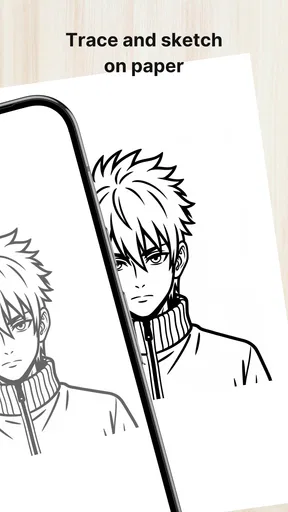
Compared with a traditional tracing sheet, the app is more flexible because I can change the reference without printing a new image or preparing a transparent copy. Compared with simply placing a tablet beside the paper, it keeps the guide visually connected to the drawing area. That can make proportion checks faster, particularly when I am copying a pose, a logo-like shape, or a decorative motif.
On the other hand, a physical tracing method can feel steadier and more predictable. It does not depend on a camera view, phone placement, or keeping the device charged. A standard image viewer may also be better when I want to study color, lighting, brushwork, or fine texture rather than follow an outline. For serious digital painters, a full illustration app with layers, brushes, masks, and editing tools remains the stronger choice.
That distinction is important. Draw with AR: Trace and Sketch is most convincing as a companion for paper drawing. If I want to create a finished digital painting, edit photographs, animate a scene, or manage a large layered project, I would choose a dedicated art application instead. The AR method solves a specific problem—getting a reference onto a physical surface—and it does not need to pretend to solve every art problem.
Trust, visible choices, and moments that deserve attention
Because this app uses augmented reality, I pay closer attention to what I am doing whenever the camera view is involved. The camera is central to placing a guide over a real drawing surface, so I would avoid pointing the phone at private documents, family members, or anything else I do not want in view. That is a sensible habit with any camera-based creative tool, regardless of how harmless the drawing project seems.
I also prefer using the app in a controlled setting: a clear desk, a single sheet of paper, and only the reference I intend to work with. This makes the drawing easier and reduces accidental exposure of unrelated items in the camera frame. When I finish, I close the session and return the phone to its normal use. The important point is that the user can choose the environment and the subject visible during the activity.
The developer is Veewa Labs, and the app is free to install. There are in-app purchases priced at $9.99 per item, so I would pay attention to any purchase screen before confirming an upgrade or extra content. A free download does not mean every possible part of the experience is included at no cost. I would also use the device’s purchase authentication and make sure children cannot approve transactions casually from my account.
That is one of the app’s more important practical considerations. Someone deciding whether to try it should ask: will the free experience cover the kind of tracing I want to do, and am I comfortable with the optional purchase structure? I would start with the free portion, learn the workflow, and only consider spending money if the app becomes part of a regular drawing routine. There is no reason to buy immediately just because the concept looks appealing.
The current version is 1.3.0, and the app supports devices running Android 8.1 or later. Before installing, I would check the operating system on an older phone, especially if I plan to use a spare device as a drawing companion. Compatibility is not only about whether the app installs; AR performance can also feel more comfortable on a newer phone with a stable camera and a screen that is easy to see from the chosen angle.
I would not make broad claims about privacy beyond the choices visible during normal use. Instead, I look at the permission prompts presented by the operating system and read the app’s privacy information before granting access. If a prompt appears that does not make sense for the drawing task, I pause and decide whether the benefit is worth it. This is particularly important for people who keep sensitive material on a desk or use a shared family device.
Keeping control over the drawing process
The best part of the experience is that I remain responsible for every mark. The overlay can guide placement, but it cannot decide how dark a line should be, which details to omit, or how much personality to add. I can use the reference as a strict outline, a loose construction aid, or a temporary scaffold that disappears once I understand the form. That range makes the app more interesting than a one-purpose tracing shortcut.
For example, I might use the AR guide only for the outside contour of a plant pot, then remove my attention from the overlay and invent the texture myself. For a face, I might use it to check the angle of the head but draw the features independently. This selective approach avoids producing a mechanically copied result and helps me learn which proportions I repeatedly misjudge.
Another useful workflow is to make two passes. In the first pass, I place very light construction lines while the guide is active. In the second, I look at the paper more than the phone and refine the drawing in my own style. This is a small but meaningful trade-off: the more I stare at the overlay, the more accurate the copy may be, but the less I practice observing the physical drawing itself.
I would also keep the phone’s position consistent from start to finish. A mark that looks aligned from one angle may appear misplaced after the device shifts. Rather than trying to correct every line while drawing, I find it better to stop occasionally, inspect the whole page, and decide whether the reference placement still serves the composition. The app is a guide, not a guarantee that the final image will be balanced.
Who should use it and who should choose something else
This is a good fit for a beginner who wants visible structure, a hobbyist making handmade artwork, or a student practicing basic proportions. It can also help someone who learns visually and finds written drawing instructions too abstract. The strongest use cases are outlines, simple objects, symbols, lettering practice, and early composition work where placement matters more than sophisticated digital finishing.
I would be less likely to recommend it to a person who wants a completely screen-free hobby, because the phone is part of the drawing setup. It is also not my first choice for an artist who already works comfortably from reference and needs advanced layers, brush engines, color correction, or export-focused production tools. In those situations, the AR guide may add setup friction without offering enough creative control.
People with limited desk space should think about the physical arrangement before installing. The phone needs a view of the page, and the page needs to remain reasonably steady. A crowded table, uneven lighting, or an awkward viewing angle can turn a quick sketch into a series of adjustments. I would test the setup with a small drawing first rather than begin with an important commission or a large finished piece.
It is also worth setting expectations about skill development. The app can help me place a shape, but it does not automatically teach perspective, anatomy, value, composition, or visual storytelling. I still need to study those subjects separately if improvement is the goal. Used thoughtfully, the app can support practice; used as a permanent substitute for observation, it may leave gaps in my understanding.
My cautious verdict after using the concept in practice
Draw with AR: Trace and Sketch succeeds because it focuses on a clear, approachable task: helping me bring a visual reference onto paper through an AR view. I like it most when I want a quick creative session, a guided first attempt, or a practical way to establish proportions before adding my own interpretation. The free entry point makes it easy to test, while the Everyone rating broadens its appeal for ordinary home use.
My recommendation comes with conditions. I would use a stable phone position, keep camera sessions pointed only at the intended work area, review permission prompts carefully, and treat the $9.99-per-item purchases as optional decisions rather than part of the basic promise. I would also check the device requirement of Android 8.1 or later before planning a session on an older phone.
For me, the app is worth trying if the main obstacle is getting started. It turns the blank page into something less intimidating and gives beginners a way to practice without needing advanced art equipment. I would skip it if I wanted a full digital studio, a purely offline paper method, or a tool for finished professional illustration. Within its narrower purpose, though, Veewa Labs has made a useful creative aid: not a replacement for learning to draw, but a practical guide that can help me make the first confident lines.
My final advice is to use the AR overlay as training wheels, not as the destination. Start with simple subjects, work lightly, check the whole composition, and gradually rely more on your own observation. That approach gives the app a genuine role in the creative process while keeping the final drawing personal and the user firmly in control.
Privacy and Permissions
See what permissions an app requests and how it handles your data.
- Photos/Media/Files
- read the contents of your USB storage, modify or delete the contents of your USB storage
- Storage
- read the contents of your USB storage, modify or delete the contents of your USB storage
- Camera
- take pictures and videos
- Other
- view network connections, full network access, prevent device from sleeping, Google Play license check
Verdict
Strengths of Draw with AR: Trace and Sketch
- Projects drawings onto real surfaces using augmented reality.
- Helpful for beginners learning proportions, outlines, and basic shapes.
- Supports creative practice without requiring advanced drawing skills.
- Portable alternative to carrying a physical projector or light box.
- Can make art sessions more engaging for children and casual users.
Limitations of Draw with AR: Trace and Sketch
- Requires a compatible device with a working camera and AR support.
- Tracking may drift on dark, reflective, or visually plain surfaces.
- Phone placement can be awkward while tracing for extended periods.
- Some useful tools or content may be restricted behind in-app purchases.
- The projected guide does not create a finished drawing automatically.
Similar Picks in This Category
View All
Canva: AI Photo & Video Editor
Canva4.8

PENUP – Drawing-sharing SNS
Samsung Electronics Co., Ltd.4.5

Crafto
Kutumb App4.6

Sketchbook
Sketchbook4.1

ibis Paint X
ibis inc.4.5

Adobe Express: AI Photo, Video
Adobe4.6
Frequently Asked Questions
What is Draw with AR: Trace and Sketch, and how does it work?
Draw with AR: Trace and Sketch is a drawing assistant that uses augmented reality to place a virtual reference image over the real world through your phone’s camera. You can select an image, adjust its size and transparency, position your device, and follow the projected lines on paper. The app is designed to guide beginners rather than create a finished drawing automatically.
Do I need a special AR device or accessories to use the app?
No special AR headset or professional equipment is normally required. The app is designed for compatible Android or iOS phones and tablets with a working camera and the necessary augmented-reality support. A phone stand or tripod is strongly recommended, however, because keeping the device steady makes tracing considerably easier and prevents the reference image from moving while you draw.
Can I use my own pictures, or am I limited to the app’s templates?
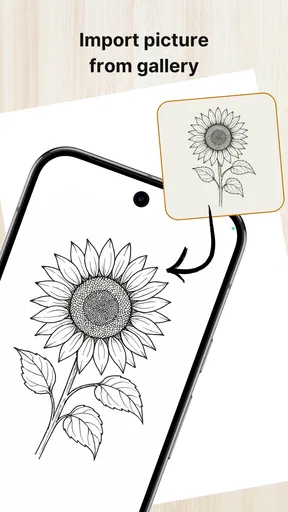
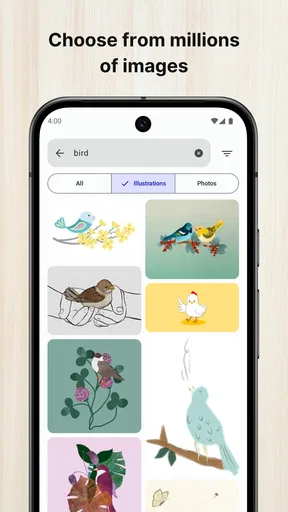
The experience generally supports choosing reference artwork from the app’s available library and, depending on the version and device, importing images from your gallery. Personal images can be useful for portraits, characters, logos, or simple objects. Results depend on image quality, contrast, and how clearly the main outlines can be seen through the camera overlay.
Is Draw with AR: Trace and Sketch suitable for complete beginners?
Yes, the app is mainly aimed at beginners, children, hobby artists, and anyone who wants help with proportions or basic outlines. It does not replace learning fundamental drawing skills, but it can make the first stages less intimidating. Users should still expect to practice hand control, shading, perspective, and detail work after completing the initial traced structure.
Is the app free, and does it require an internet connection?
Availability of free tools, advertisements, premium templates, and subscription options can vary according to the platform and app version, so it is worth checking the store listing before downloading. Basic camera functionality may work offline, while downloading templates, importing content, restoring purchases, or displaying advertisements may require an internet connection.
